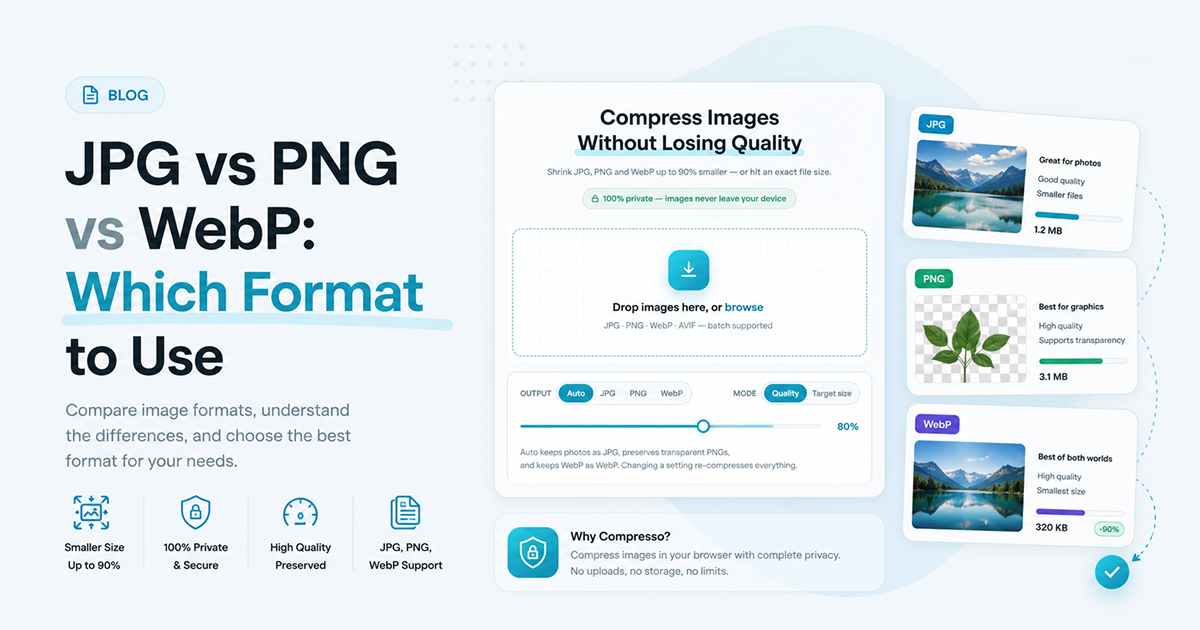
Quick answer: use JPG for photos and busy images where small file size matters more than perfect transparency, PNG when you need a transparent background or crisp text/screenshots, and WebP whenever your platform supports it — it does both jobs at a smaller file size than either.
JPG: best for photos
JPG uses "lossy" compression — it throws away image detail a human eye barely notices to shrink the file dramatically. That trade-off works great for photographs, which are full of gradients and detail where a little loss is invisible. It falls apart on screenshots or graphics with flat colors and sharp text, where JPG compression creates visible blur and color banding (artifacts) around edges.
- Good for: photos, product images, blog cover images, anything with lots of color variation
- Bad for: screenshots, logos, text-heavy graphics, anything needing transparency
PNG: best for transparency and graphics
PNG is "lossless" — every pixel is preserved exactly, and it supports a transparent background (an alpha channel). That makes it the right choice for logos, icons, screenshots, and any graphic with sharp edges or text. The trade-off is file size: a PNG of a full photo can be 5-10x larger than the same photo saved as JPG, for almost no visible quality gain.
- Good for: logos, icons, screenshots, diagrams, anything needing a transparent background
- Bad for: photos (unnecessarily large files for no visible benefit)
WebP: best of both worlds
WebP is a newer format built by Google that supports both lossy and lossless compression, plus transparency, in one format — and it's typically 25-35% smaller than an equivalent JPG or PNG at the same visual quality. Every modern browser supports it (Chrome, Firefox, Safari, Edge), which is why most large websites serve WebP images by default now. The main reason to still use JPG or PNG directly is compatibility with older tools or platforms that don't accept WebP uploads.
Quick comparison
- Smallest file size: WebP, then JPG, then PNG
- Transparency support: PNG and WebP; not JPG
- Best for photos: WebP, then JPG
- Best for screenshots/logos/text: PNG, then WebP
- Widest compatibility with older software: JPG and PNG
How to compress without losing quality
Whatever format you land on, the file size still matters for page speed and upload limits. Compresso compresses JPG, PNG, and WebP images by up to 90%, or to an exact target file size, entirely in your browser — the image never leaves your device. It's a fast way to shrink a photo before emailing it, uploading it to a form with a size limit, or adding it to a website without slowing the page down.